
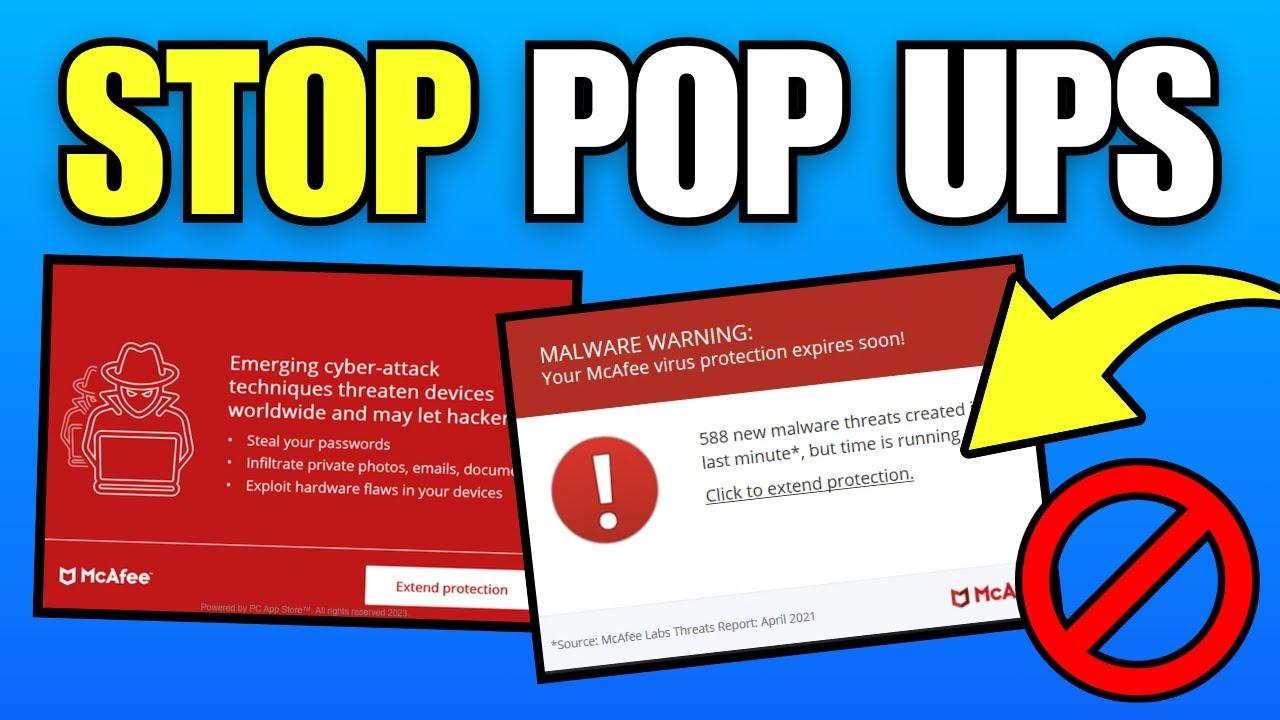
If you’ve recently upgraded to Windows 11 or have been using it for a while, you might have noticed persistent popups from security software like McAfee or Norton. These notifications can be annoying, interrupting your work, gaming, or streaming experience. While these programs are designed to protect your computer, constant reminders, upgrade prompts, and warnings can quickly become overwhelming. Fortunately, there are ways to reduce or eliminate these popups, allowing you to enjoy a smoother, distraction-free computing experience.
In this article, we’ll cover practical steps to get rid of McAfee and Norton popups on your Windows 11 computer, including adjusting notification settings, uninstalling unnecessary software, and other advanced techniques.
1. Understanding Why McAfee and Norton Popups Appear
Before we dive into the solutions, it’s important to understand why these notifications show up in the first place. Both McAfee and Norton are designed to alert users about:
-
Expired subscriptions – If your antivirus subscription is nearing its end, popups may prompt you to renew.
-
Security threats – Popups warn about viruses, malware, or potentially unwanted programs detected on your system.
-
System performance alerts – Some popups suggest optimizing your PC or cleaning junk files.
-
Promotions and offers – Both programs often display notifications encouraging you to upgrade to premium versions.
While some alerts are important for system security, many are optional notifications or marketing messages that can be disabled.
2. Disable Notifications Through Windows Settings
Windows 11 allows you to manage notifications on a per-app basis. This is often the easiest way to reduce unwanted popups.
Step-by-step guide:
-
Press Windows + I to open Settings.
-
Navigate to System > Notifications.
-
Scroll down to find McAfee or Norton in the list of apps.
-
Toggle the switch off to stop notifications from that specific app.
By doing this, Windows will no longer show popups from these programs. However, keep in mind that this doesn’t stop the software from running in the background; it only silences notifications.
3. Adjust Notification Settings Within McAfee and Norton
Both antivirus programs have their own notification controls that allow users to manage alerts.
For McAfee:
-
Open McAfee Total Protection or your installed McAfee product.
-
Go to Navigation > General Settings and Alerts.
-
Click Alerts and customize which notifications you want to see.
-
Turn off promotional or non-critical alerts to minimize interruptions.
For Norton:
-
Open Norton Security.
-
Navigate to Settings > Administrative Settings.
-
Look for Silent Mode or Notifications.
-
Enable Silent Mode to suppress popups while gaming or working, or manually deselect unnecessary alerts.
4. Uninstall Unnecessary Software
Sometimes, the best way to stop popups is to remove software you no longer need. If you have multiple antivirus programs running simultaneously, they can conflict and increase the number of notifications.
Steps to uninstall:
-
Press Windows + I to open Settings.
-
Go to Apps > Installed apps.
-
Locate McAfee or Norton, click the three-dot menu, and select Uninstall.
-
Follow the on-screen instructions to complete the removal.
-
Restart your computer to ensure all changes take effect.
If you encounter difficulties during uninstallation, you can use McAfee’s MCPR Tool or Norton’s Remove and Reinstall Tool to fully eliminate the software.
5. Use Task Manager to Disable Background Processes
Even after adjusting settings, some background processes may continue to trigger popups. You can prevent this by disabling startup programs.
Steps:
-
Press Ctrl + Shift + Esc to open Task Manager.
-
Click Startup.
-
Find McAfee or Norton in the list.
-
Right-click and choose Disable.
-
Restart your PC to apply changes.
Disabling these programs from startup prevents them from running automatically, which can significantly reduce popups. Keep in mind, though, that this might reduce real-time protection, so weigh the pros and cons before doing this permanently.
6. Enable Focus Assist in Windows 11
If you don’t want to uninstall antivirus software but want a temporary solution, Focus Assist is a Windows 11 feature that suppresses notifications while you work or play.
Steps to enable Focus Assist:
-
Press Windows + I to open Settings.
-
Navigate to System > Focus Assist.
-
Select Priority only or Alarms only.
-
You can customize the priority list to include important notifications while blocking software alerts like McAfee or Norton.
Focus Assist is especially helpful if popups mostly occur during gaming or presentations.
7. Consider Professional Support
If you’ve tried all the above methods and the popups persist, it might be time to consult professional help. Sometimes popups are caused by corrupted software installations or conflicting security programs that require advanced troubleshooting.
You can contact technical support at (833) 800-3030 for expert guidance on removing McAfee and Norton notifications safely without compromising your computer’s security. Professionals can also ensure your system remains protected after disabling alerts or uninstalling software.
8. Switching to Lightweight Security Alternatives
For users tired of constant popups, another solution is to switch to a lighter antivirus program that’s less intrusive. Windows 11 comes with Microsoft Defender built-in, which provides solid protection without aggressive notifications. Many users find that enabling Defender and uninstalling McAfee or Norton results in a cleaner, popup-free experience.
Before making the switch, make sure to backup important files and check for compatibility with your other software.
9. Advanced Registry Tweaks (Optional)
For tech-savvy users, modifying the Windows registry can stop certain notifications, though this approach carries risk. Incorrect changes to the registry can harm your system. If you are comfortable:
-
Press Windows + R, type regedit, and press Enter.
-
Navigate to paths related to McAfee or Norton.
-
Carefully disable or modify keys related to alerts.
Because this method is advanced, it’s generally recommended to consult with a professional if you’re unsure. Calling (833) 800-3030 can provide step-by-step support safely.
10. Conclusion
McAfee and Norton popups on Windows 11 can be frustrating, but they are manageable. By adjusting Windows notifications, configuring software settings, using Focus Assist, or uninstalling unnecessary programs, you can drastically reduce interruptions. For persistent issues, professional support ensures your system remains secure while keeping your desktop clutter-free.
Whether you choose to tweak settings yourself or seek help through (833) 800-3030, taking control of notifications will lead to a smoother, distraction-free experience on Windows 11. Remember, the key is balancing security and usability—your system should protect you without constantly demanding your attention.
 English
Join our community to interact with posts!