
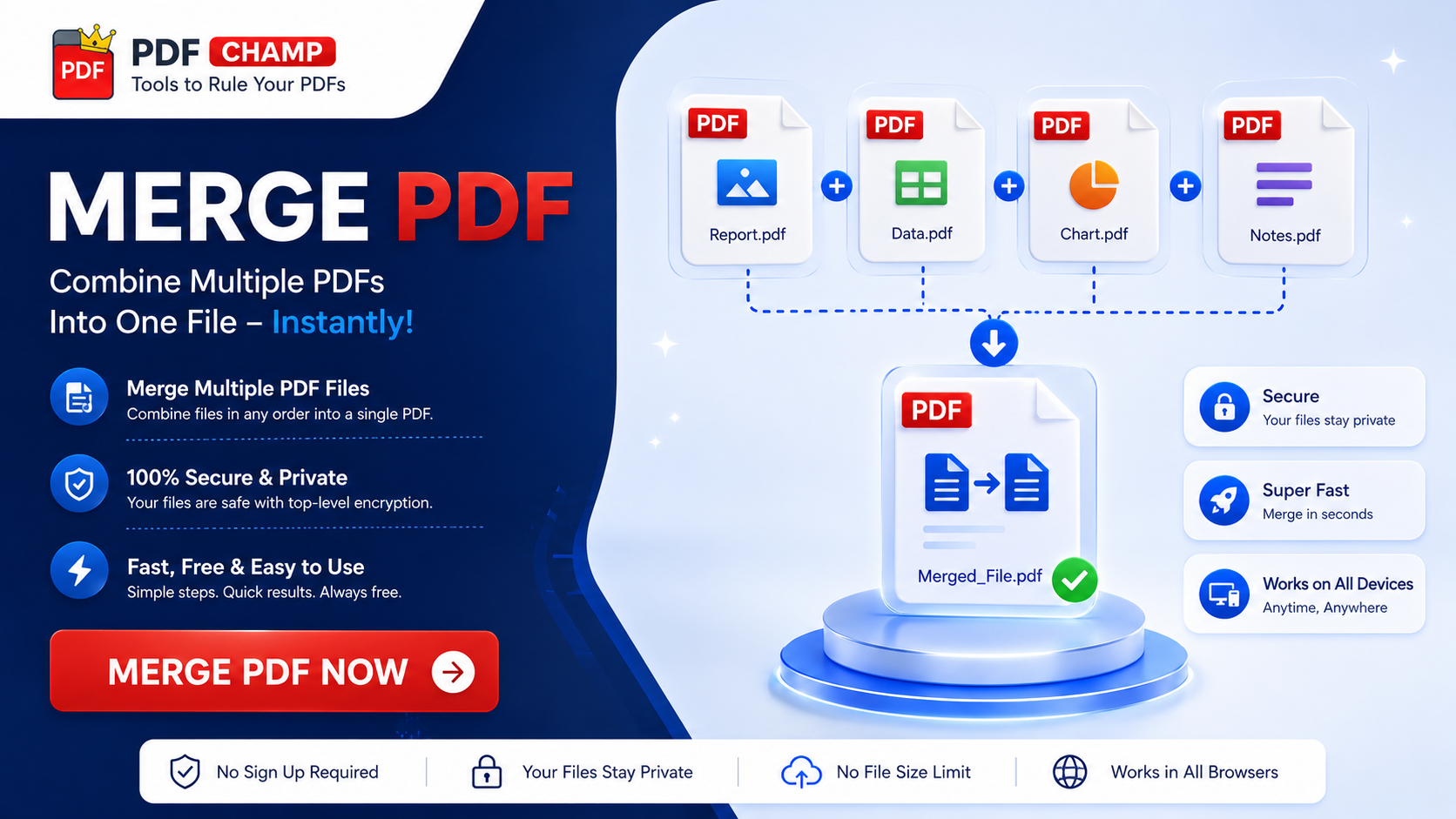
Managing multiple PDF files looks simple until the final merged document comes out wrong. Pages appear in the wrong order images lose clarity, tables shift, unwanted files get included and the online tool stops working because the PDF is too large. This problem is common with office reports, invoices, legal records academic files, project documents and scanned PDF files. The good part is that you can fix most PDF merging issues by arranging the files properly and using an accurate method. Here’s the thing: the safest way to merge PDF files depends on file size, privacy level password protection and formatting accuracy.
Why PDF Merging Problems Happen
PDF merging issues usually happen because different files behave differently. Some PDF come from scanners, some from Word documents, some from invoices and some from secured systems. When these files are combined without proper checking, the output cannot look appropriate.
Common reasons:
•PDF files are created from different sources and software.
•Files are not arranged in the correct order before merging.
•Online tools can compress and slightly alter file formatting.
•A password-protected PDF need proper access before merging.
•Large PDF can fail in browser-based tools.
•Unwanted files can be selected by mistake.
•Demo tools can add watermarks and restrict file merging.
So the issue is not always with the PDF itself. Many times it is caused by the merging method.
Signs Your PDF Merge Went Wrong
Users usually notice these problems after combining PDF files:
•Pages appear in the wrong order. •Images, charts and tables lose clarity.
•The merged PDF becomes difficult to review.
•Online PDF merger fails with large files.
•Locked PDF files do not merge.
•The final PDF contains unwanted documents.
•A watermark appears after merging.
•The formatting appears to have changed after the files were combined.
•The page structure feels messy and unprofessional.
•File quality drops after using an online tool.
These problems are frustrating especially when the PDF is for business, legal, academic and office use.
Fix PDF Merge Errors with These Simple Steps
Step 1: Manual Ways to Merge PDF Files
The simple method is to organize PDF files manually before merging.
Start by placing all related PDF files in one folder. Rename them in a proper sequence such as:
1.Cover-Page.pdf
2.Invoice-Details.pdf
3.Report-Summary.pdf
4.Attachments.pdf
This helps keep the page order clear before combining files. Some users also try the built-in print or save options to create a PDF from multiple files. This can work for very small and simple documents, but it is not always reliable.
Problems With Manual PDF Merging
1.It cannot work well with many PDF files.
2.It can disturb page order if file names are not properly arranged.
3.It is not ideal for password-protected PDF.
4.It cannot preserve quality in every case.
5.It takes more time when handling office and business records.
Manual merging is suitable only when the files are small, simple and not confidential.
Step 2: When Online PDF Merge Tools Become Risky
Online PDF merge tools are useful for small and simple files. Merging two normal PDF for personal use usually works fine.
But for large files, office reports, invoices, legal papers financial records and private business documents, online tools are not always a safe choice. Files must be uploaded to a server and some tools can also add limits, reduce quality and place a watermark on the final PDF.
Common Issues in Online PDF Merging
1.Files must be uploaded to a third-party server.
2.Confidential PDF can face privacy risks.
3.Large files can fail during upload and processing.
4.Internet speed affects the process.
5.Some tools reduce quality and compress files.
6.Some free tools add watermarks.
7.File size and page limits can apply.
Online methods are great for simple tasks but not so good for private business files, legal documents, invoices, financial records and large office reports.
Step 3: Use a Professional Offline PDF Merge Tool
For large, private and properly structured PDF file an offline PDF merger is usually the better method. A Windows 64-bit desktop PDF merging software called PDF Champ PDF Merge Tool is made to merge PDF files offline, without the need for the internet. 7, 8.1, 10 and 11 versions of Windows are supported.
A practical workflow looks like this:
1.Add PDF files from the local system.
2.Arrange the files in the correct sequence.
3.Use Move Up and Move Down to reorder files before merging.
4.Remove unwanted PDF files before final processing.
5.Enter the correct password if a password-protected PDF is included.
6.Merge the selected PDF files.
7.Save the final merged PDF locally.
The tool helps preserve page order, structure, metadata, images, text, tables and file quality. This makes it useful when combining office reports, invoices, records, project files scanned PDF and other important documents. Important note: It can merge password-protected PDF files when the correct password is provided. It does not bypass passwords and remove PDF security automatically.
Mistakes to Avoid While Merging PDF Files
Avoid these common mistakes:
•Do not upload confidential PDF to unknown online tools.
•Do not merge files without checking the order first.
•Do not assume locked PDF can be merged without the correct password.
•Do not use random free tools for legal, business and office records.
•Do not ignore watermark and file limit issues in demo tools.
•Do not delete original files before checking the merged output.
•Do not combine unrelated files without reviewing the final document.
•Do not depend on browser-based tools for very large PDF files.
A small mistake in PDF merging can create a messy final document especially when page sequence and formatting matter.
Prevent PDF Merging Problems with Proper File Preparation
The best prevention is simple file discipline before merging.
Follow these tips:
•Rename PDF files in proper sequence before merging.
•Keep related PDF in one folder.
•Check file order before final merge.
•Remove duplicate and unwanted files first.
•Use offline software for private and business PDF.
•Keep passwords ready for protected PDF.
•Review the final merged PDF before sharing or printing.
•Save a backup of the original files.
This reduces errors and keeps the final PDF clean, structured and easier to review.
When Should You Use Advanced PDF Merge Software?
Advanced PDF merger software is useful when basic tools are not enough.
It helps when PDF files are
•Large in size
•Confidential
•Password-protected
•Needed in a specific page order
•Related to legal or business records
•Part of reports, invoices, office files, academic documents and project files
This software is a practical offline option for Windows users who need structured PDF merging without uploading files online. Users can try the demo version first, but it supports limited PDF merging and adds a watermark. The full version removes these limits and creates the merged PDF without a watermark.
Summary
PDF merging problems come from several causes, including not having the file arranged properly. Online software usually has limitations; there may be problems with processing large PDF and the PDF is encrypted and you don't need a password to open it. A simple way to merge small and non-sensitive files would be through a web-based program. To ensure safety and regulation of private, legal, business, office, or academic documents, use an offline program.
If quality, privacy, and structure are important factors, use a simple, offline PDF merging application to track page order, eliminate unnecessary PDF files, and prepare your files in advance.
This application is well-suited to anyone wishing to merge PDF files offline on a Windows machine while maintaining the complete page order, structure, metadata, images, text, tables, and quality of the entire PDF document.
FAQs
1. Why do PDF pages go in the wrong order after merging?
This happens when files are selected randomly or not arranged before merging. Rename files in order like 01, 02, 03 before combining them.
2. Can I merge password-protected PDF files?
Yes, but the correct password is needed. A PDF merge tool cannot merge locked files without proper access.
3. Is online PDF merging safe for private files?
For normal files, online tools can work, but for invoices, legal papers, office records and private files, offline merging is safer.
4. Why does a watermark appear on my merged PDF?
A watermark usually appears when using a free or demo tool. The full version normally removes watermark limits.
5. How can I merge PDFs without losing quality?
Organise the files in the right order, remove unnecessary PDFs and then use a trustworthy offline PDF merge tool. This helps keep text, images, tables and pages clean.
 English
Join our community to interact with posts!