
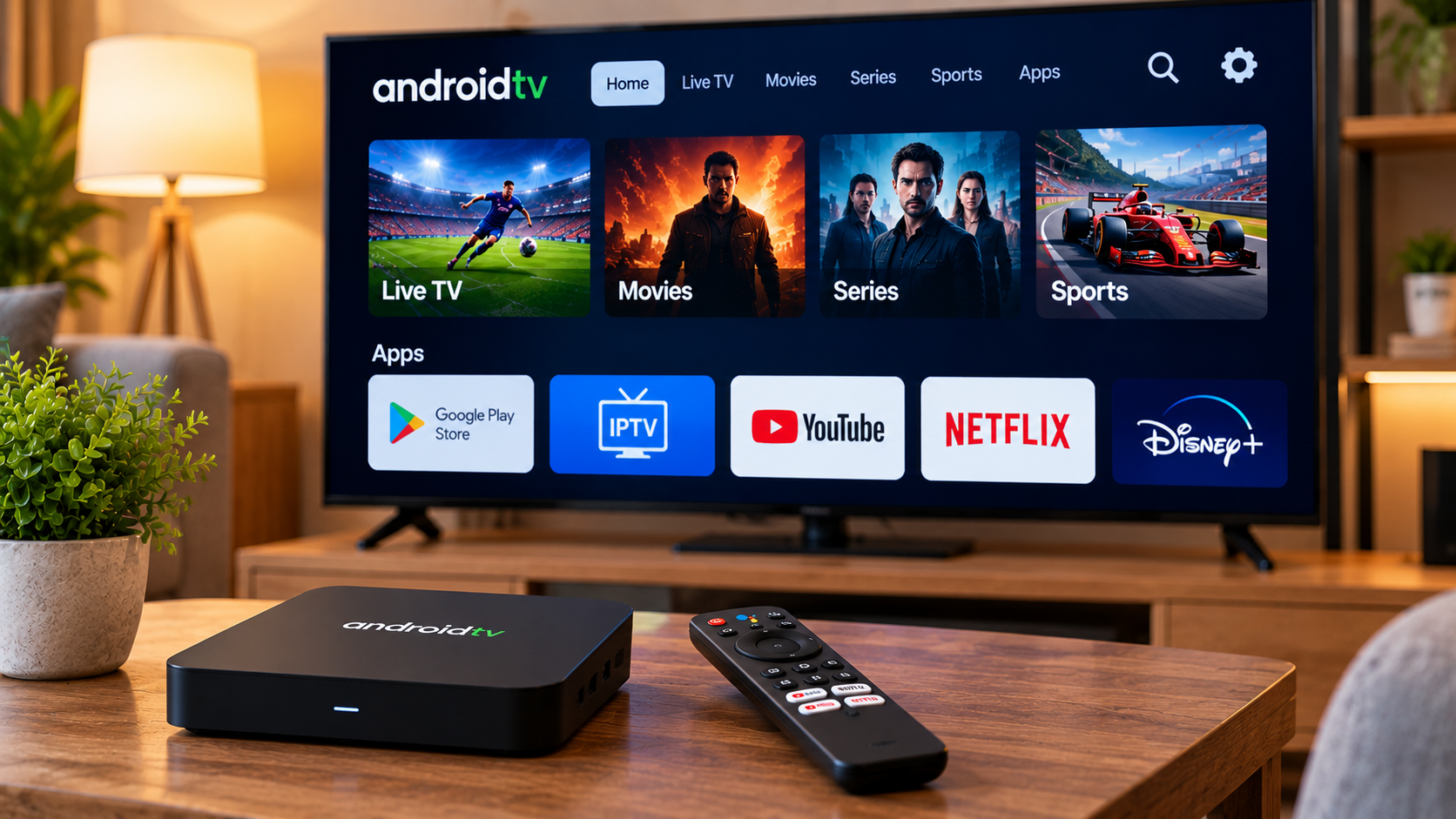
Android TV is a popular platform for streaming because it gives users access to a wide range of entertainment applications through the Google Play Store. With a compatible IPTV player, viewers can also use Android TV to watch live television, sports, movies, and series through an internet connection.
Setting up IPTV on Android TV is generally straightforward, but choosing the right application, checking device compatibility, and maintaining a stable network connection can make a noticeable difference in everyday use.
What Is Android TV?
Android TV is an operating system designed for televisions and streaming devices.
It is available on many Smart TVs as well as dedicated streaming boxes and media players. Because the platform supports downloadable applications, users can install IPTV players directly from the Google Play Store when those apps are available for their device.
Android TV should not be confused with simply using an Android phone on a television. The interface is designed specifically for larger screens and remote-control navigation.
Can IPTV Work on Android TV?
Yes, IPTV can work on Android TV through a compatible player.
The IPTV application normally acts as the interface for accessing content supplied through a subscription or playlist. The player itself generally does not provide television channels automatically.
Depending on the service, users may connect through:
-
M3U playlist details
-
Xtream-style credentials
-
Username and password
-
Portal information
-
Other supported login methods
The exact process depends on the IPTV service and application being used.
Choose a Suitable IPTV Player
One of the main advantages of Android TV is the range of available media applications.
Different IPTV players may offer different layouts and features, so it is worth comparing them before settling on one.
Useful features can include:
-
Live TV categories
-
Movies and series sections
-
Electronic Program Guide support
-
Favourite channels
-
Search tools
-
Recently watched content
-
Multiple playlist support
A player should also work smoothly with the remote control. An interface that feels comfortable on a phone may not always be convenient on a television.
Install the IPTV Application
Open the Google Play Store on your Android TV device and search for a compatible IPTV player.
Select the official application and install it directly on the device.
Once installation is complete, open the player and look for an option to add a playlist or account.
The setup screen may ask for information such as a username, password, server address, or playlist URL.
Enter every detail exactly as supplied.
Check Your Login Information
Incorrect account details are a common reason why an IPTV player fails to load content.
Before changing network settings or reinstalling applications, check that:
-
The username is correct
-
The password is correct
-
The server address has been entered accurately
-
The playlist link is complete
-
There are no unnecessary spaces
People comparing IPTV options for the Swedish market can also review First Class IPTV for information about IPTV subscriptions, device support, and installation guidance.
Whichever service you choose, follow the setup method recommended for your selected player.
Allow the Playlist to Load
After entering the account information, the application may need time to organize channels, movies, series, and guide information.
The first synchronization can take longer than normal because the player may be downloading a large amount of data.
Avoid repeatedly restarting the app during this process unless it appears completely unresponsive.
Once loading is complete, the available categories should appear inside the interface.
Organize Your Favourite Channels
Large IPTV playlists can contain many categories.
Rather than scrolling through everything each time, use the favourites feature if your player supports it.
You can create a smaller collection containing the channels you watch most frequently.
Some Android TV IPTV players also allow users to:
-
Hide unused categories
-
Reorder groups
-
Create favourite lists
-
Search by channel name
These features can make daily navigation much easier.
Use an Electronic Program Guide
An Electronic Program Guide, commonly called an EPG, can show what is currently playing and what is scheduled next.
When supported, an EPG may provide:
-
Program names
-
Start and end times
-
Upcoming shows
-
Channel schedules
-
Program descriptions
An EPG can be especially helpful when browsing live television because it reduces the need to open channels individually.
If the guide appears empty, check whether the player includes a refresh option.
Check Your Internet Connection
IPTV depends on a stable internet connection.
Streaming problems can appear even when a speed test shows a high maximum download speed. Short connection drops, Wi-Fi interference, and network congestion can still affect playback.
Common signs of network issues include:
-
Buffering
-
Freezing
-
Slow channel loading
-
Playback stopping unexpectedly
-
Reduced video quality
If several streaming applications have similar problems, the local network should be checked first.
Wi-Fi or Ethernet?
Most Android TV devices support Wi-Fi, while many streaming boxes and televisions also provide Ethernet connectivity.
Wi-Fi
Wi-Fi is convenient and avoids extra cables.
However, performance can be affected by the distance from the router, walls, nearby networks, and other electronic equipment.
Ethernet
A wired Ethernet connection can provide a more consistent connection for stationary devices.
If the Android TV box is located close to the router and buffering happens regularly over Wi-Fi, testing Ethernet may help determine whether the wireless connection is the cause.
Improve Wi-Fi Performance
If Ethernet is not practical, there are several ways to improve the wireless setup.
Place the router in an open position rather than inside a cabinet. Avoid hiding it behind large furniture.
If the Android TV device is far from the router, consider whether a mesh Wi-Fi system could provide stronger coverage.
It can also help to check whether several household devices are using large amounts of bandwidth at the same time.
Keep the Android TV Device Updated
System updates can improve compatibility, stability, and security.
Open the Android TV settings periodically and check for available software updates.
The IPTV player should also be kept current through the Google Play Store.
An outdated player may occasionally experience crashes, login problems, or interface issues after system changes.
Clear Unnecessary Applications
Android TV devices can have limited storage, especially lower-cost streaming boxes.
Installing many applications can eventually reduce available space.
Remove apps you no longer use and avoid keeping several IPTV players installed unless you genuinely need them.
A simpler device setup can also make troubleshooting easier.
What to Do if IPTV Buffers
Buffering does not automatically mean there is a problem with the IPTV provider.
Start with basic checks.
Test Another Channel
If only one stream has a problem, the issue may be limited to that channel.
Restart the IPTV App
Close the application completely and reopen it.
Restart Android TV
Restarting the device can clear temporary software problems.
Restart the Router
A router restart may resolve short-term network issues.
Check Network Activity
Downloads, cloud backups, gaming, and other video streams can reduce available bandwidth.
Test Another Device
If the same account works normally on another device, the Android TV application or local connection may need further attention.
Consider Stream Resolution
Higher-resolution streams generally require more bandwidth.
If 4K content frequently buffers while HD streams work normally, the available internet connection or device performance may be contributing to the problem.
Choosing a resolution that matches the connection can often provide a more consistent experience.
Android TV Box or Built-In Android TV?
Some televisions include Android TV or Google TV directly, while others require an external streaming device.
A built-in system keeps the setup simple because no additional hardware is required.
An external Android TV box can be useful when the television's original smart platform is outdated or does not support the desired IPTV player.
It can also be replaced independently without purchasing a new television.
Keep Account Details Private
IPTV credentials should be treated like other login information.
Do not post usernames, passwords, server addresses, or private playlist links publicly.
Use official app stores where possible and follow configuration instructions from the service or application developer.
This can help reduce the risk of account misuse.
Final Thoughts
Android TV provides a flexible platform for IPTV because it supports a wide selection of streaming applications and works across many television and media devices.
A successful setup starts with choosing a compatible IPTV player, entering account details correctly, and maintaining a stable internet connection.
Organizing favourite channels, using an EPG, keeping software updated, and monitoring network performance can make everyday streaming easier.
If problems occur, troubleshoot one part of the setup at a time rather than changing everything at once. A simple and properly configured Android TV system can provide a practical way to manage live television, movies, series, and other streaming content from one interface.
 English
Join our community to interact with posts!