
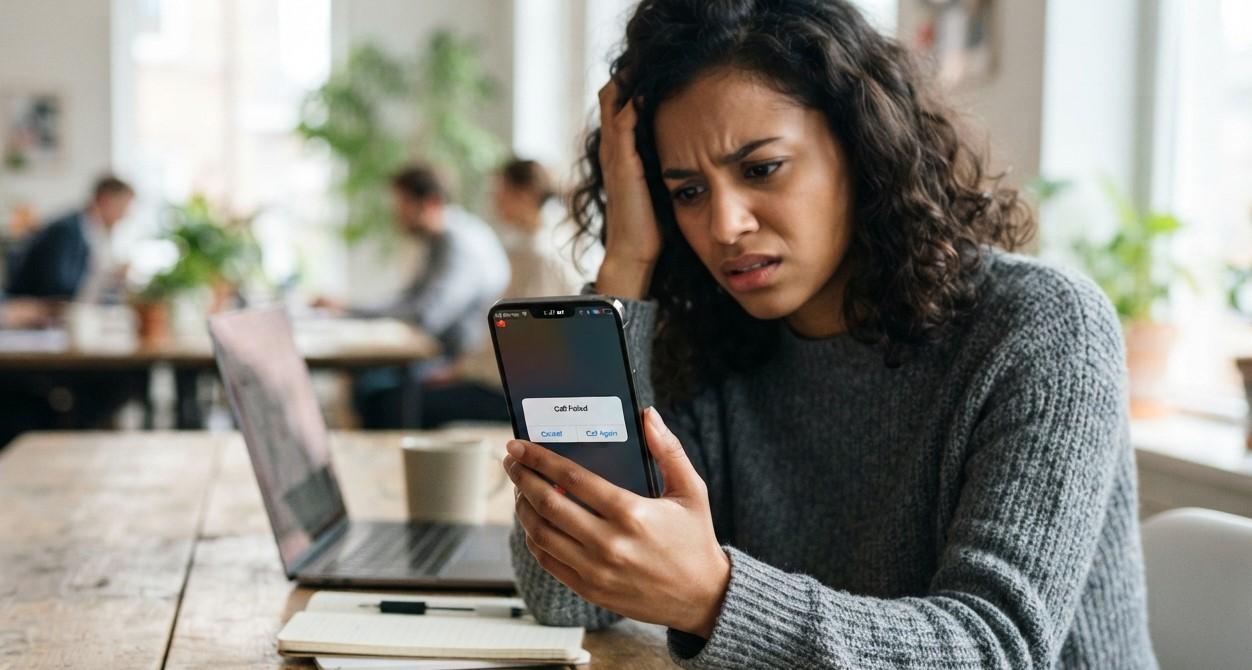
Your iPhone is designed to keep you connected, but problems can sometimes prevent you from making or receiving phone calls. You might see “Call Failed,” experience calls that immediately end, hear no ringing, or find that incoming calls go directly to voicemail. These issues can be caused by weak cellular coverage, carrier problems, incorrect settings, outdated software, SIM or eSIM issues, or hardware damage.
At Avenue D Cellular, we understand how frustrating it can be when an important call will not go through. If you are searching for cell phone repair brooklyn ny or professional iphone repair brooklyn, understanding the cause of the problem can help you decide whether a simple setting adjustment is enough or whether your iPhone needs professional attention.
Table of Contents
- Why Is My iPhone Not Making or Receiving Calls?
- Common Causes of iPhone Call Problems
- How to Fix an iPhone That Cannot Make Calls
- How to Fix an iPhone That Cannot Receive Calls
- What to Do When Calls Keep Dropping
- When Cellular Hardware May Be the Problem
- How to Prevent iPhone Calling Problems
- Frequently Asked Questions
- Conclusion
- CTA
Why Is My iPhone Not Making or Receiving Calls?
There are several reasons an iPhone may suddenly stop making or receiving calls. Apple identifies network problems, certain settings, outdated software, and carrier-related issues among the possible causes.
Before assuming your iPhone is damaged, check whether the problem affects all calls or only certain numbers.
For example:
- You cannot make any outgoing calls.
- Incoming calls never reach your iPhone.
- Calls immediately disconnect.
- Your iPhone displays “No Service,” “Searching,” or “SOS.”
- Calls go directly to voicemail.
- You can make calls but cannot receive them.
- Calls work only in certain locations.
Identifying the exact symptom can make troubleshooting much easier.
Common Causes of iPhone Call Problems
1. Weak or Unavailable Cellular Signal
Your iPhone needs an active cellular connection for standard phone calls unless your carrier supports an alternative such as Wi-Fi Calling.
If you are in an area with poor coverage, your calls may fail or disconnect. Try moving to another location and checking whether the signal improves. Apple recommends testing calls from another location when troubleshooting calling problems.
2. Carrier Network Problems
Sometimes the iPhone is working correctly, but the carrier is experiencing an outage or another network problem.
Your account could also have a billing-related block or another service restriction. Apple recommends contacting your carrier to confirm that your account is active and that there are no local outages or network-side problems.
3. Airplane Mode Is Turned On
Airplane Mode disables cellular communication. If it was accidentally enabled, your iPhone may not be able to make or receive normal calls.
Turning Airplane Mode on and off can also help the iPhone reconnect to the cellular network. Apple recommends leaving it on briefly before turning it off again.
4. Do Not Disturb or Focus Is Active
If your main problem is that incoming calls are not ringing, check your Focus settings.
A Focus mode such as Do Not Disturb can affect how incoming calls are handled. Apple recommends checking Focus settings when calls are not reaching or alerting you normally.
5. A Number Is Blocked
If you cannot receive calls from one particular person, their number may have been blocked accidentally.
Check your blocked contacts and make sure the caller's number has not been added to the blocked list.
6. Call Forwarding Is Enabled
Call Forwarding can send incoming calls somewhere else instead of allowing your iPhone to receive them normally.
If you are unexpectedly missing calls, check your Phone settings and make sure Call Forwarding is configured the way you want.
7. Silence Unknown Callers or Call Filtering
If calls from people who are not saved in your contacts are not ringing, check your call-filtering settings.
Apple notes that settings such as Silence Unknown Callers can prevent calls from unknown numbers from ringing normally.
8. SIM or eSIM Problems
A damaged SIM card, inactive cellular line, or eSIM configuration problem can interfere with cellular calling.
If your iPhone also shows “No SIM,” “Searching,” “No Service,” or “SOS,” the problem may be related to your cellular connection rather than the Phone app itself.
9. Outdated iOS or Carrier Settings
Software updates can include improvements and fixes related to connectivity. Apple recommends checking for both iOS updates and carrier settings updates when troubleshooting call problems.
10. Internal Hardware Damage
If your iPhone has been dropped, exposed to liquid, or previously repaired and calling problems began afterward, an internal hardware issue may be involved.
When network, account, SIM, and software checks do not resolve the problem, professional diagnosis may be necessary.
How to Fix an iPhone That Cannot Make Calls
Try the following solutions in order.
Step 1: Check Your Cellular Signal
Look at the status bar for your cellular signal. If you see SOS, No Service, or Searching, your iPhone may not be connected to the cellular network.
Move to an area with better coverage and try the call again.
Step 2: Turn Airplane Mode On and Off
Open Settings and turn on Airplane Mode.
Wait about 15 seconds, then turn it off and wait for your cellular connection to return. Apple recommends this as a basic way to attempt to reconnect to the network.
Step 3: Restart Your iPhone
A simple restart can clear temporary software and connectivity problems.
After restarting, check your signal and try making another call.
Step 4: Check for Carrier Settings Updates
Connect to Wi-Fi and go to:
Settings > General > About
If a carrier settings update is available, your iPhone should provide an option to install it.
Step 5: Update iOS
Go to:
Settings > General > Software Update
If an update is available, install it and then test your phone calls again.
Step 6: Check Your SIM or Cellular Line
If you use a physical SIM, make sure it is properly inserted and undamaged.
If you use Dual SIM or eSIM, go to Settings > Cellular and verify that the appropriate cellular line is turned on.
Step 7: Contact Your Carrier
If everything looks correct on the iPhone but calls still fail, contact your carrier.
Ask them to verify:
- Your account is active.
- There is no local outage.
- There is no billing-related restriction.
- Your phone is properly registered on the network.
- Your cellular plan is configured correctly.
These checks can help determine whether the problem is network-related rather than an iPhone hardware issue.
How to Fix an iPhone That Cannot Receive Calls
If outgoing calls work but incoming calls do not, focus on your call settings.
Check Focus Mode
Go to Settings > Focus and check whether Do Not Disturb or another Focus mode is active.
Check Blocked Contacts
Open your Phone settings and review your blocked contacts. Make sure the caller is not blocked accidentally.
Check Call Forwarding
Go to your Phone settings and review Call Forwarding. Make sure it is disabled if you want calls to reach your iPhone directly.
Check Silence Unknown Callers
If calls from unfamiliar numbers are not ringing, review your Silence Unknown Callers or related call-filtering settings. Apple notes that these features can affect how unknown callers reach your iPhone.
Check Wi-Fi Calling
If your carrier supports Wi-Fi Calling, it may help when cellular coverage is weak or unavailable. Apple recommends checking whether Wi-Fi Calling is available when troubleshooting incoming-call problems.
What to Do When Calls Keep Dropping
Dropped calls can be particularly frustrating because the call may initially connect normally.
Try these steps:
- Check your cellular signal.
- Move to a different location.
- Turn Airplane Mode on and off.
- Restart your iPhone.
- Install available iOS updates.
- Check for carrier settings updates.
- Contact your carrier about network problems.
- Test whether the problem occurs with every call or only in certain locations.
If calls consistently drop even in areas with strong coverage, and your carrier confirms there is no network or account issue, the iPhone itself may require further diagnosis.
When Cellular Hardware May Be the Problem
Not every calling issue is caused by software or settings.
Professional inspection may be appropriate if:
- The problem started after a significant drop.
- Your iPhone was exposed to water or moisture.
- Cellular service disappeared after a previous repair.
- Multiple SIM cards fail to work.
- The phone repeatedly shows No Service or Searching.
- Calls fail even when your carrier confirms everything is working.
- The device has other cellular connection problems.
Apple notes that if the carrier confirms there is no account or network issue and a hardware problem is suspected, the device may need service.
A technician can inspect the device and determine whether the problem is related to the SIM tray, cellular components, connectors, or another internal issue.
How to Prevent iPhone Calling Problems
You cannot prevent every network problem, but several habits can help reduce avoidable issues:
- Keep iOS updated.
- Install carrier settings updates when available.
- Protect your iPhone from drops and impacts.
- Keep the device away from unnecessary moisture.
- Make sure your SIM card is properly installed.
- Keep your cellular plan active.
- Review Focus and call-filtering settings if you frequently miss calls.
- Contact your carrier when service problems appear to be network-related.
Regularly checking your iPhone's software and cellular settings can make it easier to identify problems before they become persistent.
Frequently Asked Questions
Why does my iPhone say “Call Failed” every time I call someone?
“Call Failed” can occur because of cellular network problems, carrier issues, incorrect settings, outdated software, or other connectivity problems. Check your signal, restart the iPhone, toggle Airplane Mode, and contact your carrier if the issue continues.
Why can I make calls but not receive them?
Check Focus or Do Not Disturb, blocked contacts, Call Forwarding, and Silence Unknown Callers or call-filtering settings. Also verify that your cellular line is active.
Why are my calls going straight to voicemail?
This can happen because of certain Focus or call-filtering settings, network conditions, or carrier-related issues. Review your Phone and Focus settings and contact your carrier if the problem continues.
Can a bad SIM card prevent calls from working?
Yes. A damaged or improperly installed SIM can interfere with cellular connectivity. If you suspect the SIM is the problem, your carrier can help test or replace it.
Can updating my iPhone fix call problems?
An iOS update or carrier settings update may resolve certain software or network-configuration problems. Apple recommends checking for both when troubleshooting calling issues.
Why does my iPhone show SOS instead of cellular service?
SOS or SOS Only indicates that the iPhone is not connected to its normal cellular network, although emergency calling may still be available depending on the region and circumstances. Check your cellular connection, restart the device, and contact your carrier if service does not return.
Should I repair my iPhone if calls still do not work?
If you have checked your settings, restarted the phone, updated iOS and carrier settings, and confirmed with your carrier that there is no network or account problem, professional diagnosis may help identify a hardware issue.
Conclusion
When your iPhone is not making or receiving calls, the cause could be something simple such as Airplane Mode, Focus settings, call filtering, weak coverage, or a temporary network problem. SIM issues, outdated software, carrier restrictions, and hardware damage can also affect calling.
Start with the basic troubleshooting steps, then contact your carrier to rule out account and network problems. If the carrier confirms that everything is working correctly and your iPhone still cannot make or receive calls, professional inspection may be the next step.
For dependable cell phone repair brooklyn ny, Avenue D Cellular can help diagnose persistent iPhone connectivity and calling issues. If you are looking for iphone repair brooklyn, getting the problem checked can help identify whether the cause is software, cellular configuration, or hardware-related.
CTA
Is your iPhone refusing to make calls, missing incoming calls, or repeatedly showing “Call Failed”? Don't let an unreliable phone connection disrupt your day.
Contact Avenue D Cellular for professional help with iPhone and cell phone problems. Whether you need cell phone repair brooklyn ny or trusted iphone repair brooklyn, have your device properly diagnosed so you can understand the cause and determine the appropriate solution.
 English
Join our community to interact with posts!