
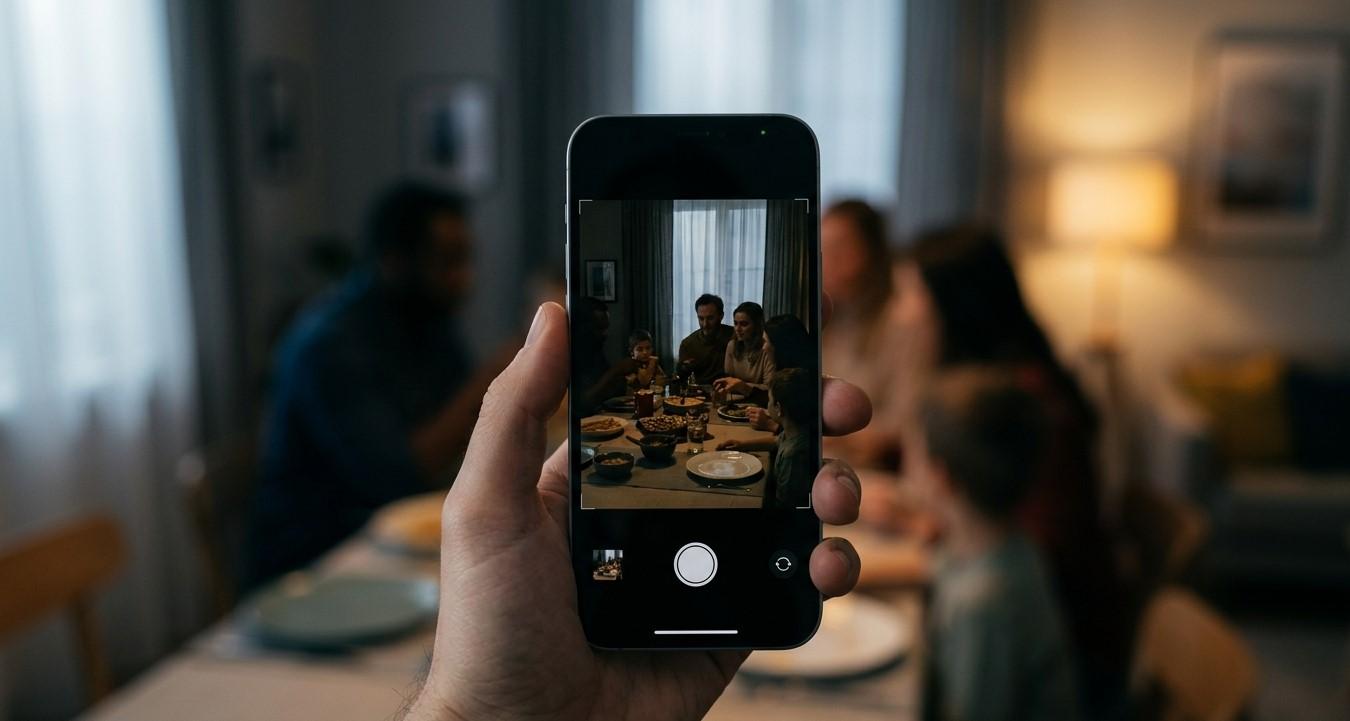
Smartphone cameras have become an essential part of everyday life. People use them to capture family moments, important documents, travel memories, social media content, and quick snapshots. When your phone's camera suddenly starts taking dark photos, it can be frustrating, especially when the scene looks bright to your eyes but the resulting picture appears unusually dim.
Dark photos can happen for several reasons. Sometimes the problem is caused by poor lighting or incorrect camera settings. In other situations, a dirty camera lens, software glitch, damaged camera hardware, or exposure problem may be responsible. Understanding the possible causes can help you determine whether you can fix the issue yourself or need professional assistance.
For smartphone owners in Douglasville, Mobile Device Techs can help troubleshoot and diagnose device-related camera problems. If the issue is connected to physical damage or another hardware fault, professional Cell Phone Repair in Douglasville, GA may be appropriate. Customers with Samsung tablets, Samsung phones, or iPhones can also seek Samsung Tablet Repair in Douglasville, GA, Samsung Phone Repair Douglasville, GA, or iPhone repair in Douglasville, GA when camera problems persist.
Why Is My Phone Camera Taking Dark Pictures?
A smartphone camera automatically adjusts settings such as exposure, shutter speed, ISO, and focus to produce a properly exposed image. When these adjustments do not work as expected, your photos may appear darker than they should.
Common causes include:
-
Low lighting
-
A dirty camera lens
-
Incorrect exposure settings
-
Strong backlighting
-
Camera software glitches
-
HDR problems
-
Night mode issues
-
Outdated software
-
Camera app problems
-
Physical camera damage
-
Moisture inside the camera module
The right solution depends on what is causing the problem.
1. Clean Your Camera Lens
One of the simplest reasons for dark or unclear photos is a dirty camera lens.
Fingerprints, dust, grease, and other debris can cover the camera lens and reduce the amount of light reaching the camera sensor. Even a thin layer of fingerprints can affect image quality.
Use a clean microfiber cloth to gently wipe the camera lens. Avoid abrasive materials that could scratch the lens surface.
After cleaning, take another picture under the same lighting conditions. If the image is noticeably brighter or clearer, the lens was likely contributing to the problem.
2. Check the Lighting Conditions
Before assuming that something is wrong with your phone, consider the lighting in the scene.
Smartphone cameras have small image sensors compared with many dedicated cameras, so they can struggle in extremely dark environments. A room may appear reasonably bright to your eyes while still being challenging for a phone camera.
Move closer to a light source or turn on additional lights. If the photos become normal in brighter conditions, your camera may simply be reaching its low-light limitations.
For nighttime photography, use the camera's available Night Mode or low-light setting when appropriate.
3. Adjust Camera Exposure
Most modern smartphone camera applications allow you to adjust exposure manually.
Open the camera app and tap the area of the screen you want to focus on. Depending on the phone model, an exposure slider may appear. Move it slightly upward to brighten the image.
Be careful not to increase exposure too much. Excessive exposure can cause bright areas to lose detail.
If your camera frequently produces dark images, check whether the exposure adjustment has accidentally been changed.
4. Avoid Strong Backlighting
Strong light behind your subject can cause the subject itself to appear dark.
For example, if you take a picture of someone standing directly in front of a bright window, the camera may expose for the bright background rather than the person.
Try changing your position so that the main light source is behind you or beside you instead of directly behind your subject.
You can also tap on your subject's face or main object to help the camera determine the appropriate exposure.
5. Try HDR Mode
HDR, or High Dynamic Range, can help smartphones balance very bright and dark areas within the same scene.
If your photo contains a bright sky and a darker foreground, the camera may struggle to expose both areas correctly. HDR can combine multiple exposures to preserve more detail.
Depending on your phone, HDR may be automatic, manually selectable, or built into the camera's processing system.
Try turning HDR on or allowing the phone to use automatic HDR and compare the results.
6. Use Night Mode in Low Light
If your photos are mainly dark at night or in dim indoor environments, Night Mode may help.
Night photography modes typically capture more light by using longer exposures and advanced image processing. Keep the phone as steady as possible while the camera captures the image.
If your phone has Night Mode but photos remain extremely dark even when the phone is held steadily, there may be another issue affecting the camera.
7. Restart the Camera App
A temporary camera app glitch can sometimes affect exposure, focus, or image processing.
Close the camera application completely and open it again. If that does not work, restart your smartphone.
A restart can clear temporary system problems and reload camera-related services.
If the camera consistently returns to normal after restarting but later begins producing dark photos again, a software or application issue may be involved.
8. Clear Camera App Cache on Android
Android users may be able to clear the camera application's cache.
Temporary cached data can occasionally become corrupted and cause unusual application behavior. Clearing the cache can refresh the app without necessarily deleting your personal photos.
The exact steps vary depending on the manufacturer and Android version, but the option is generally found through the camera application's information or storage settings.
If you are unsure which settings to change, avoid deleting important camera data without first confirming what will be removed.
9. Update Your Smartphone Software
Software updates can fix camera-related bugs and improve image processing.
Check your phone's system settings for available updates. Installing current software may resolve problems involving camera exposure, HDR, autofocus, or image processing.
If the dark-photo problem started after a recent update, monitor the camera after restarting the phone and installing any additional updates that become available.
10. Test the Front and Rear Cameras
Testing both cameras can help determine whether the problem affects the entire camera system or only one camera module.
Take several photos using the rear camera and then switch to the front camera.
If both cameras produce unusually dark images, software, settings, or general lighting may be responsible.
If only one camera is consistently producing dark photos while the other works normally, the affected camera module may have a hardware problem.
This distinction can be useful when deciding whether professional repair is necessary.
11. Check for Moisture or Physical Damage
A smartphone camera can be affected by physical damage or liquid exposure.
If your phone was recently dropped, the camera module or its internal connection may have been damaged. Similarly, moisture can interfere with camera components and cause changes in image quality.
Look for signs such as:
-
Fogging inside the camera lens
-
Unusual spots or shadows
-
Persistent dark images
-
Camera focus problems
-
Camera app crashes
-
A black camera preview
-
Problems that started immediately after a drop
If the camera problem appeared after physical damage or moisture exposure, professional inspection may be appropriate.
12. Remove Accessories That Cover the Camera
Some phone cases, camera lens protectors, or other accessories can interfere with the camera.
A poorly fitted case may partially cover the lens or create reflections. Low-quality lens protectors can also reduce light transmission and affect image quality.
Temporarily remove the case or lens protector and take another photo.
If the picture becomes brighter or clearer, the accessory may be responsible.
When Should You Seek Professional Camera Repair?
If your phone continues taking dark photos after you have cleaned the lens, checked settings, updated the software, and tested different lighting conditions, the problem may require professional attention.
Professional inspection is particularly useful when:
-
Only one camera consistently produces dark images.
-
The camera preview itself looks unusually dark.
-
The camera stopped working after a drop.
-
There is condensation or fogging inside the lens.
-
The camera cannot focus correctly.
-
Photos contain unusual lines, spots, or shadows.
-
The camera app repeatedly crashes.
-
The problem continues after a factory reset or other software troubleshooting.
For customers looking for Cell Phone Repair in Douglasville, GA, a technician can examine the camera module and related internal components.
Samsung users experiencing camera problems may benefit from Samsung Phone Repair Douglasville, GA, while tablet owners can seek Samsung Tablet Repair in Douglasville, GA if their tablet camera is producing unusually dark images.
For Apple users, professional iPhone repair in Douglasville, GA can help determine whether an iPhone camera problem is caused by software, accessories, or damaged hardware.
How to Prevent Smartphone Camera Problems
Taking a few precautions can help keep your phone's camera working properly.
Keep the camera lens clean and use a protective case that does not interfere with the camera opening. Avoid exposing your phone to unnecessary moisture, extreme temperatures, or situations where it could be dropped.
Be careful when applying camera lens protectors and choose accessories that are compatible with your specific phone model.
Keep your phone's software updated as well. Regular updates can provide improvements to camera performance and general system stability.
Final Thoughts
A phone camera taking dark photos does not always mean that the camera is damaged. Low lighting, dirty lenses, incorrect exposure, strong backlighting, HDR settings, accessories, and temporary software glitches can all affect image brightness.
Start by cleaning the lens, checking lighting conditions, adjusting exposure, testing HDR or Night Mode, restarting the camera app, and updating the phone's software. Testing both the front and rear cameras can also help determine whether the problem is isolated to one camera module.
If the camera continues producing dark photos or the problem began after a drop or liquid exposure, professional inspection may be the right next step. Mobile Device Techs can assist customers with Cell Phone Repair in Douglasville, GA, Samsung Tablet Repair in Douglasville, GA, Samsung Phone Repair Douglasville, GA, and iPhone repair in Douglasville, GA.
Addressing persistent camera problems early can help identify the cause and restore your smartphone's ability to capture clear, properly exposed photos.
 English
Join our community to interact with posts!