
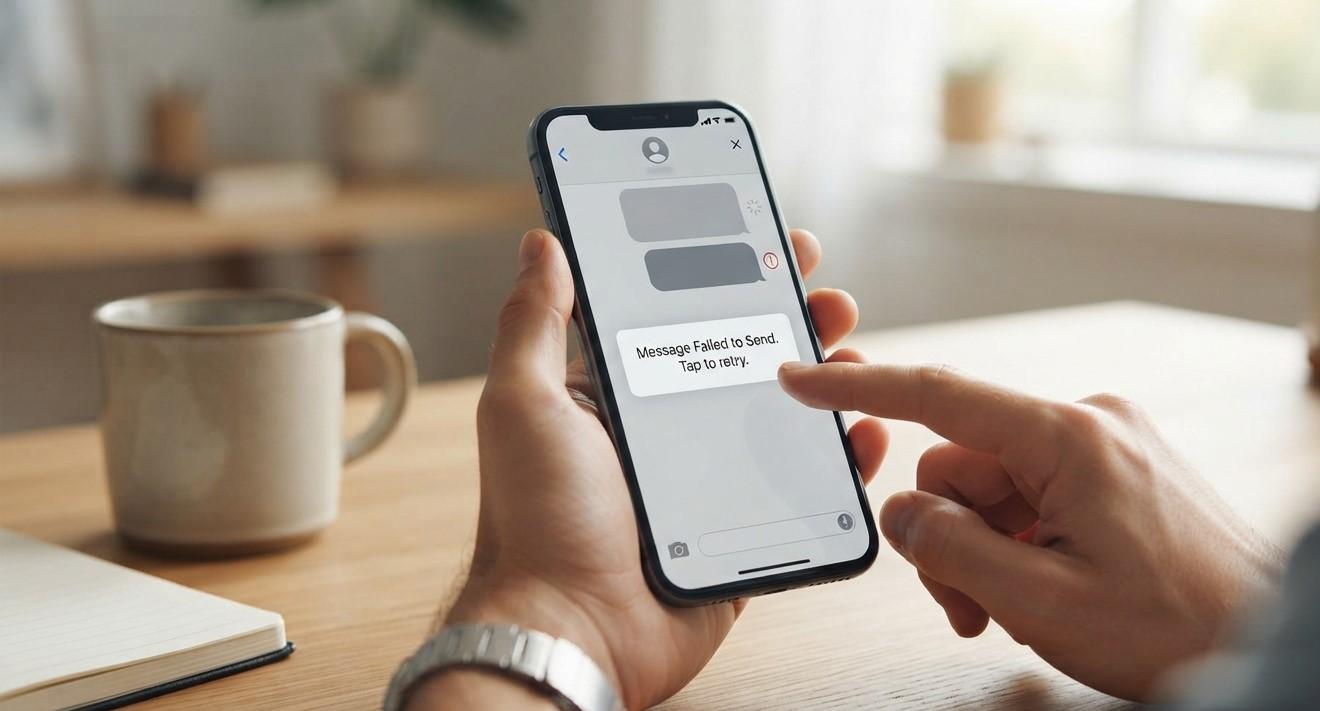
Text messaging is one of the most convenient ways to communicate, whether you are contacting family, confirming appointments, or receiving important updates. When your smartphone suddenly stops sending or receiving text messages, it can interrupt your daily routine. Although the problem may seem serious, it is often caused by a weak network signal, incorrect settings, a temporary software issue, or a problem with your SIM card.
If your phone displays messages such as “Message Not Sent,” fails to receive verification codes, or stops delivering incoming texts, several troubleshooting steps may help restore normal messaging. The correct solution depends on whether the issue affects all messages, only certain contacts, or a particular messaging application. Identifying the symptoms first can save time and help you avoid unnecessary repairs.
Both Android phones and iPhones can experience messaging problems. Sometimes, a simple restart or network reset is enough to resolve the issue. In other cases, the cause may involve your mobile carrier, an outdated operating system, a damaged SIM card, or a hardware fault. Knowing how to recognize these possibilities makes troubleshooting easier.
For users searching for Mobile Repair Albany, understanding common smartphone problems can help them decide when professional assistance may be useful. If you have searched for iphone repair near me or phone screen repair near me, remember that messaging issues do not always require screen replacement. The first step is to identify the actual cause before choosing a repair solution.
1. Check Your Mobile Network Signal
A weak or unavailable cellular signal is one of the most common reasons a phone cannot send or receive SMS messages. Traditional text messaging generally relies on your mobile carrier's network, so an internet connection alone may not be enough.
Check the signal bars displayed at the top of your screen. If you see “No Service,” “SOS,” or a similar warning, your phone may not be connected to the cellular network.
Try these steps:
- Move to an area with stronger reception.
- Step outside if you are inside a building with poor coverage.
- Check whether other people using the same carrier have similar problems.
- Turn Airplane Mode on for about 10 seconds, then turn it off.
- Restart your phone and try sending a message again.
If the problem occurs only in one location, network coverage may be responsible. If it continues everywhere, check your SIM card, account status, and network settings.
2. Restart Your Smartphone
Temporary software glitches can interfere with messaging functions. Restarting your device closes background processes and refreshes its connection to the mobile network.
To restart your phone, use the normal power menu and select the restart option if available. If your device does not offer that option, turn it off, wait several seconds, and switch it back on.
After restarting, wait for the cellular signal to return. Then send a short text message to a trusted contact.
If restarting solves the problem, the cause may have been a temporary system or network error. However, if messages continue failing, move on to the next troubleshooting steps.
3. Check Whether Your SIM Card Is Working
Your SIM card connects your phone to your mobile carrier. If it is loose, damaged, incorrectly inserted, or no longer active, SMS messaging may stop working.
If your phone uses a physical SIM card, turn off the device before removing it. Check the card and tray for visible damage, dust, or signs of improper placement. Reinsert the SIM carefully and turn the phone back on.
You can also check whether the phone recognizes the SIM card in its settings. If it displays “No SIM” or repeatedly loses network service, the card or SIM reader may be responsible.
For a phone using an eSIM, check that the correct mobile plan is enabled and active. Avoid deleting an eSIM profile unless you know how to reactivate it or your carrier has provided instructions.
If possible, ask your carrier to test the SIM or provide a replacement. If the problem continues with a working SIM, the phone itself may need inspection.
4. Confirm Your Mobile Account Is Active
Sometimes, the problem has nothing to do with the smartphone. An inactive account, expired prepaid balance, unpaid bill, or carrier restriction may prevent text messages from being sent or received.
Check your carrier's app, website, or customer support service to confirm that your account is active. If you use a prepaid connection, make sure your package or balance supports the messages you are trying to send.
Also ask whether there are network outages or restrictions affecting SMS services.
If calls and mobile data work but SMS does not, a messaging-specific account issue may be possible. Your carrier can confirm whether your number is provisioned correctly for text messaging.
5. Check Your Messaging App Settings
Incorrect app settings can prevent messages from appearing or being sent properly. Start by confirming that you are using the correct default messaging application.
On Android, open your messaging settings and check which app is selected as the default SMS app. If you recently installed another messaging application, it may have changed this setting.
On an iPhone, open Settings and review the Messages options. Make sure iMessage is configured correctly if you use it.
Remember that SMS and internet-based messaging are different. iMessage uses Apple's messaging service, while SMS relies on your carrier. Android messaging apps may also support RCS, which uses data or Wi-Fi for supported conversations.
If only one type of message fails, the problem may be related to that service rather than all texting functions.
6. Check Whether the Problem Affects One Contact
If you can message most people but cannot send or receive texts from one particular contact, the issue may be limited to that conversation.
Check the following:
- Confirm that the contact's phone number is correct.
- Make sure the number includes the correct country code when necessary.
- Check whether the contact has changed their number.
- Review blocked contacts and spam settings.
- Start a new conversation using the correct number.
On an iPhone, check your blocked contacts list in Settings. On Android, review the blocking and spam controls in your messaging app.
If the other person has blocked your number, messages may not reach them as expected. However, failed delivery alone does not prove that you have been blocked. Ask the person through another communication method if possible.
7. Clear the Messaging App Cache on Android
An app's temporary data can sometimes become corrupted and cause performance problems. On Android, clearing the messaging app's cache may help if messages fail to load, the app freezes, or conversations behave unexpectedly.
The exact menu names vary by phone, but the general process is:
- Open Settings.
- Select Apps or Applications.
- Choose your messaging app.
- Open Storage or Storage and cache.
- Select Clear cache, if available.
- Reopen the app and test messaging.
Avoid selecting “Clear data” or “Clear storage” unless you understand the consequences. These options may reset app settings or remove locally stored information.
iPhones do not provide the same general app-cache clearing option. If Messages behaves incorrectly on an iPhone, restart the device, check for software updates, and review available storage instead.
8. Update Your Phone's Software
Outdated software can contain bugs that affect messaging, network connectivity, and app performance. Installing a suitable update may correct known issues.
On Android, open Settings and look for System Update or Software Update. On an iPhone, go to Settings, select General, and open Software Update.
Before updating, connect to a reliable Wi-Fi network, ensure the battery is sufficiently charged, and back up important information.
You should also update your messaging application through the relevant app store if an update is available.
If the problem began immediately after a software update, restart the phone and check for any subsequent fixes. Persistent issues may require additional troubleshooting.
9. Check Your Phone's Message Center Settings
Some Android devices and carrier configurations use an SMS service center number to route traditional text messages. If this number is missing or incorrect, outgoing SMS messages may fail.
However, these settings are not available for manual editing on every device, and the correct number depends on your carrier.
Do not enter a random service center number found online. Contact your mobile provider and ask whether your SMS configuration is correct. Follow the carrier's instructions for your particular phone.
On iPhones, SMS routing settings are generally managed differently, so manually changing an Android-style SMS service center number is not an appropriate solution.
10. Make Sure Your Phone Has Enough Storage
Very low storage can interfere with app performance, notifications, and the ability to save new conversations or attachments. Although storage problems do not usually disable all SMS messaging by themselves, they can contribute to messaging errors.
Check your available storage in the phone's settings. If space is nearly full, remove unnecessary downloads, delete unwanted files, or move photos and videos to a secure backup location.
Before deleting conversations, review whether they contain important information. Back up messages if your device and preferred backup method support it.
After freeing some space, restart the phone and test the messaging app again.
11. Reset Network Settings
If your phone still cannot send or receive messages, incorrect network configurations may be responsible. Resetting network settings can help resolve persistent connection problems.
The reset process varies by device, but it is usually found under the system reset options.
Before proceeding, understand that this may remove saved Wi-Fi networks and passwords, Bluetooth pairings, and certain network preferences. It generally does not erase your photos or personal files, but you should read the confirmation screen carefully.
After the reset, reconnect to Wi-Fi if needed and allow the phone to register with the cellular network. Test SMS messaging again.
If the issue remains, contact your carrier before attempting a factory reset. A factory reset is more disruptive and should be considered only after backing up important data and exploring less destructive solutions.
12. When to Seek Professional Phone Repair
If none of the troubleshooting steps work, the issue may involve a damaged SIM reader, internal components, or another hardware-related fault. A phone that has been dropped, exposed to moisture, or repaired previously may need a more detailed inspection.
Consider professional assistance if:
- Your phone repeatedly loses cellular service.
- Multiple working SIM cards fail in the same device.
- The SIM is not detected even after careful reinsertion.
- Messaging problems began after physical damage or liquid exposure.
- The device has other unexplained network problems.
A repair technician can inspect the device and help distinguish between a hardware fault, software issue, and carrier-related problem.
If you are looking for Mobile Repair Albany, explain exactly what happens when you send or receive a message. Mention any recent drops, software updates, SIM changes, or network problems. If you searched for iphone repair near me or phone screen repair near me, describe the messaging symptoms clearly so the appropriate service can be considered rather than assuming the screen is responsible.
Final Thoughts
A smartphone that cannot send or receive text messages can be frustrating, but the cause is not always serious. Weak network coverage, a temporary software glitch, an inactive mobile account, incorrect app settings, or a faulty SIM card can all contribute to messaging problems.
Start with simple solutions: check your signal, restart your phone, confirm your account is active, and inspect the messaging app settings. If the issue continues, check for software updates, review storage, and consider resetting network settings after understanding what the reset changes.
If these steps do not resolve the problem, professional diagnosis or assistance from your mobile carrier may be necessary. For users considering Mobile Repair Albany, identifying the symptoms and explaining the steps already attempted can help narrow down the cause. Whether you searched for iphone repair near me or phone screen repair near me, choosing a solution based on the actual fault can help you restore reliable communication without unnecessary repairs.
 English
Join our community to interact with posts!