
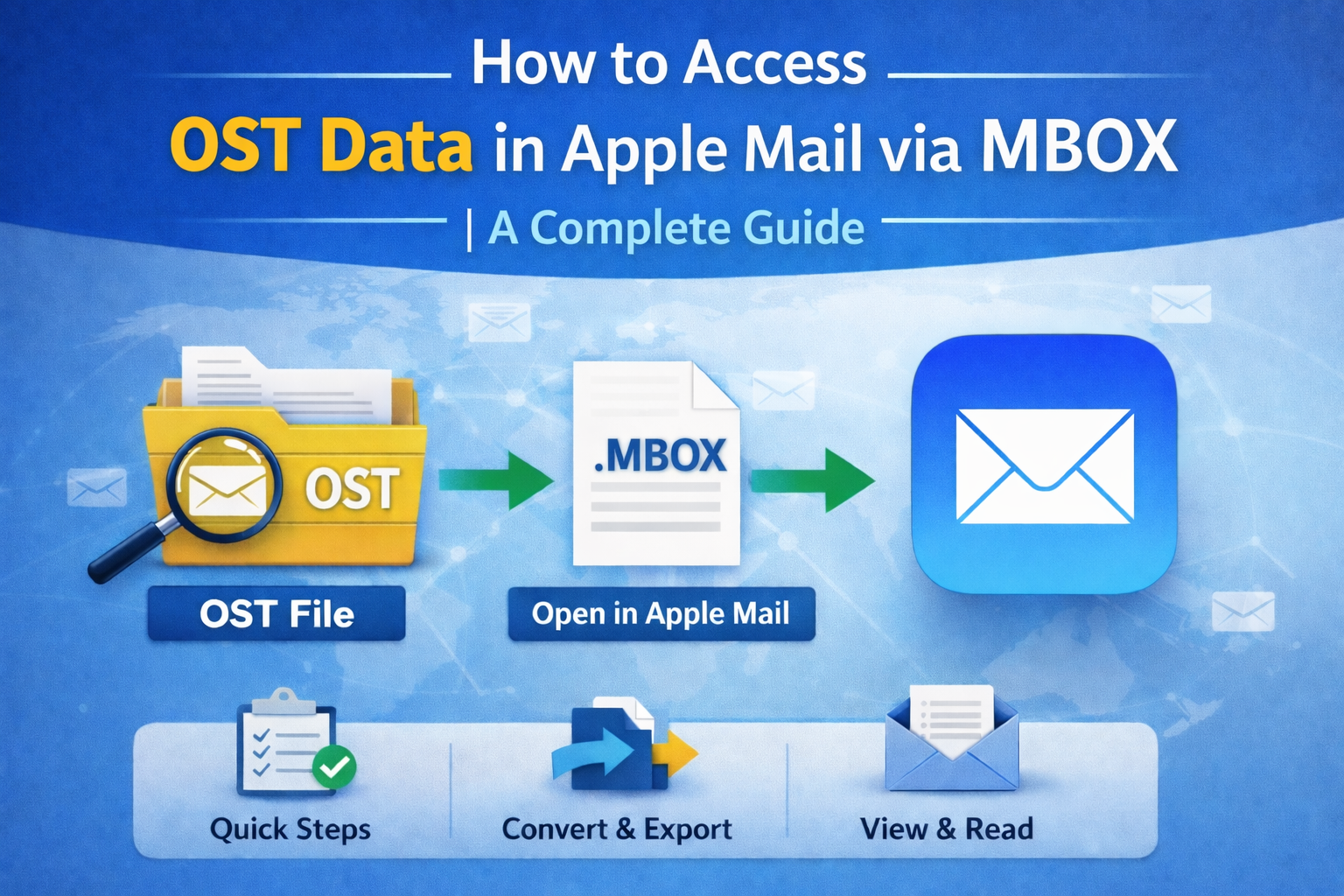
One big problem that comes up when users switch from Outlook on Windows to Apple Mail on Mac is getting to their old OST files. A lot of users think they can just copy the file to macOS and open it, but Apple Mail doesn't recognize the OST format at all.
Apple Mail can't open OST files on its own because they are closely linked to Outlook and Exchange accounts. Before you can use the data on macOS, you need to convert it into a format that works with MBOX. This guide tells you how that process works and what choices you have.
This guide will help you understand:
- Why can't you open OST files in Apple Mail
- What role does MBOX play in macOS
- How to move OST data by hand
- And what alternative method can simplify the process
Why Apple Mail Cannot Read OST Files
OST files are not just regular email files. They:
- Keep cached mailbox data from Exchange or IMAP servers
- Are profile-dependent and encrypted
- Cannot be opened without the original Outlook configuration
- Do not support cross-platform access
Apple Mail won't see or recognize an OST file even if you copy it to a Mac. The way OST and MBOX are set up is very different.
Why MBOX Is Required for Apple Mail
MBOX is a common format for storing mailboxes that is used by:
- Apple Mail
- Thunderbird
- Eudora
- A lot of mail clients that run on Unix
MBOX is platform-friendly, but OST is not. Apple Mail has a built-in import feature that lets you directly import MBOX files.
To be able to access OST data on a Mac, it must first be converted into MBOX format.
Manual Way to Access OST Data in Apple Mail
Apple Mail does not have a direct "Import OST" option. If Outlook is still working, though, you can take a longer route.
Step 1: Open Outlook with the Connected Profile
- Start Microsoft Outlook.
- Check to see if the mailbox is fully synced.
- Check that you can open all of your folders and emails.
This method won't work if the Exchange account is deleted or the Outlook profile is corrupt.
Step 2: Export OST Mailbox to PST
You can't export directly to MBOX from Outlook. So, first, you need to save your mailbox data as a PST file:
- Click on File, then Open & Export, and then Import/Export.
- Choose "Export to a file."
- Pick Outlook Data File (.pst)
- Choose the folders you need
- Save the PST file
Your OST data is now in PST format.
Step 3: Convert PST to MBOX Using Thunderbird
Because Apple Mail can't import PST:
- Get Mozilla Thunderbird.
- You can either add your Outlook account or use an import add-on.
- Import PST files into Thunderbird.
- Export mailbox folders as MBOX files.
This step connects Outlook and Apple Mail.
Step 4: Import MBOX to Apple Mail
After you make the MBOX file:
- Launch Apple Mail.
- Choose File > Import Mailboxes.
- Choose MBOX files.
- Pick the MBOX file that you exported.
- Complete the import.
The "Import" section of Apple Mail will show your emails.
Challenges in Manual Conversion
This method works in some cases, but it has a lot of problems:
- Installation of Outlook is necessary.
- Needs access to an active profile.
- Involves multiple software tools.
- Takes a long time for multiple mailboxes.
- Not good for OST files that are orphaned.
- There is a chance that the folders will not match when they are moved.
If Outlook can't open the OST file, you can't recover it by hand.
Direct Conversion Method for Quicker Access
Users usually look for a direct solution when the manual route gets too complicated, or Outlook isn't available. In these situations, special tools for converting OST to MBOX are used to get mailbox data without Outlook.
For instance, FixVare OST to MBOX Converter can read OST files on its own and make MBOX files that work with Apple Mail.
These kinds of tools usually let you:
- Loading of OST files that are active or orphaned
- Complete mailbox conversion
- Export only certain folders
- Keeping attachments safe
- Keeping the folder hierarchy up to date
- Handling of large OST files
The whole process takes less time because it cuts out steps in PST and Thunderbird.
Basic Working Process of a Direct Converter
- Install the software.
- Choose the OST file on your computer.
- Look at the contents of the mailbox.
- Select MBOX as the format for the output.
- Choose the folder where you want to go.
- Start the conversion
- Add the MBOX file you made to Apple Mail.
This method lowers the need for technical help and lowers the risks of handling data.
Things to Check Before Importing into Apple Mail
Make sure of the following before you finish the migration:
- You have a copy of the original OST file.
- There is enough space on the disk.
- Attachments stay the same after conversion.
- The structure of the folders stays the same.
- The MBOX import feature is available in the Mac Mail version.
These checks help keep problems from happening after the move.
Final Thoughts
Because of how they are made, you can't open OST files directly in Apple Mail. Converting OST to MBOX is the only way to make the data available on macOS.
You can follow a multi-step manual method if Outlook is working and you can access your profile. But it could get tricky with big or orphaned files.
A direct OST to MBOX conversion is usually more useful because it makes the process easier and more organized. After being converted to MBOX, it is easy to import into Apple Mail using the built-in import option.
Knowing the right way to do things makes sure that you can safely get to your Outlook data in Apple Mail without losing important emails or attachments.
 English
Join our community to interact with posts!